

When working with web development in Salesforce, developers often transition from Visualforce (VF) to Lightning Web Components (LWC). They encounter subtle differences. These differences affect how the DOM (Document Object Model) behaves.
These subtle differences are impactful. A common question arises. Why does a static html element like <div> in Visualforce update automatically when manipulated by a script? In LWC, a similar approach requires dynamically creating the <div> element. This difference is rooted in the underlying architecture and principles of the two frameworks.
Create the JavaScript Plugin (simplePlugin.js)
Lets create a js file named “simplePlugin.js” and upload it as a static resource in Salesforce, naming it simplePlugin.
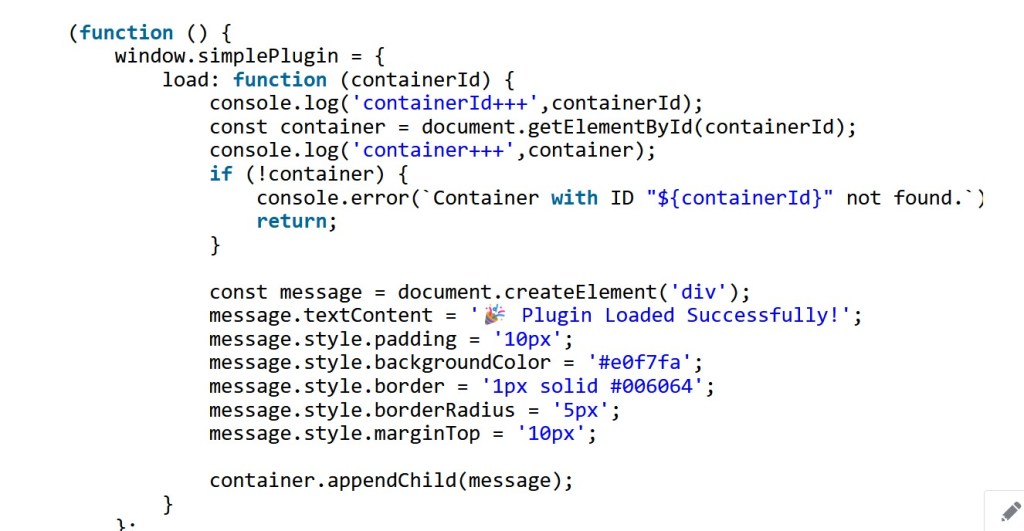
(function () {
    window.simplePlugin = {
        load: function (containerId) {
			console.log('containerId+++',containerId);
            const container = document.getElementById(containerId);
			console.log('container+++',container);
            if (!container) {
                console.error(`Container with ID "${containerId}" not found.`);
                return;
            }

            const message = document.createElement('div');
            message.textContent = '🎉 Plugin Loaded Successfully!';
            message.style.padding = '10px';
            message.style.backgroundColor = '#e0f7fa';
            message.style.border = '1px solid #006064';
            message.style.borderRadius = '5px';
            message.style.marginTop = '10px';

            container.appendChild(message);
        }
    };
})();
Now let’s see the various behavior of calling simplePlugin.js in VF page and LWC
Visualforce DOM Behavior
Visualforce operates on a global DOM model. Elements in the DOM are directly accessible to any script running on the page. This includes inline JavaScript or external libraries.
Here’s why the simplePlugin script works automatically with Visualforce:
- Global Scope: Visualforce elements are rendered in the global
documentnamespace, meaning any element with an ID or class name can be directly accessed using standard DOM methods (e.g.,document.getElementByIdordocument.querySelector). - Script Execution Timing: When the DOM finishes loading, scripts like
simplePlugincan immediately locate elements. They can manipulate elements because these exist in the global DOM context. - No Shadow DOM: Visualforce does not use Shadow DOM or any form of encapsulation. This means all DOM elements are accessible and modifiable without restriction.
In the provided VF example:
<apex:page>
    <!-- Include the simplePlugin.js static resource -->
    <apex:includeScript value="{!$Resource.simplePlugin}"/>

    <!-- Container where the plugin will render its content -->
    <div id="plugin-container" style="margin-top:20px;"></div>

    <!-- Inline script to call the plugin's load function -->
    <script>
    function invokeSimplePlugin() {
        if (window.simplePlugin && typeof window.simplePlugin.load === 'function') {
            console.log('simplePlugin is available.');
            window.simplePlugin.load('plugin-container');
        } else {
            console.error('simplePlugin is not available.');
        }
    }
    // Add an event listener to execute the initializeLightningOut function once the DOM is fully loaded.
    document.addEventListener('DOMContentLoaded', invokeSimplePlugin);
    </script>
</apex:page>
- The
<div id="plugin-container">is part of the global DOM. window.simplePlugin.loadcan directly find and modify the<div>element using its ID (plugin-container).- The VF page loads “
simplePlugin.js” and the<div>element with ID (plugin-container) gets dynamic style applied fromwindow.simplePlugin.loadmethod.

2. Lightning Web Components (LWC) DOM Behavior
LWC follows a modern web standard and uses Shadow DOM for encapsulation. This creates an isolated DOM structure for each component, ensuring:
- Encapsulation: Styles and DOM manipulations inside a component do not inadvertently affect other parts of the page. Other parts of the page do not inadvertently affect the component.
- Scoped Access: Elements inside the Shadow DOM are not accessible through the global
documentobject.
Problem Statement –
If you try to replicate the same like VF page in LWC, issues will arise. After loading the script, it will not access the div. As a result, nothing will come on UI.
Sample Code –
<template>
    <lightning-card title="Plugin Load From External Script Example - LWC" icon-name="custom:custom14">
        <div id="plugin-container" style="margin-top:20px;"></div>
    </lightning-card>
</template>
import { LightningElement } from "lwc";
import { loadScript } from "lightning/platformResourceLoader";
import simplePlugin from "@salesforce/resourceUrl/simplePlugin";

export default class SimplePluginLwc extends LightningElement {
  pluginInitialized = false;

  renderedCallback() {
    if (this.pluginInitialized) {
      return;
    }
    this.pluginInitialized = true;

    loadScript(this, simplePlugin)
      .then(() => {
        debugger;
        console.log("simple plugin loaded");
        if (
          window.simplePlugin &&
          typeof window.simplePlugin.load === "function"
        ) {
          console.log("simplePlugin is available.");
          window.simplePlugin.load("plugin-container");
        } else {
          console.error("simplePlugin is not available.");
        }
      })
      .catch((error) => {
        console.error("Error loading simplePlugin:", error);
      });
  }
}
Below is the high-level functionality of this LWC example:
- The
<div>with the classplugin-containerexists inside the Shadow DOM of the LWC. - External scripts like
simplePlugincannot directly access elements within the Shadow DOM using global methods likedocument.getElementById.
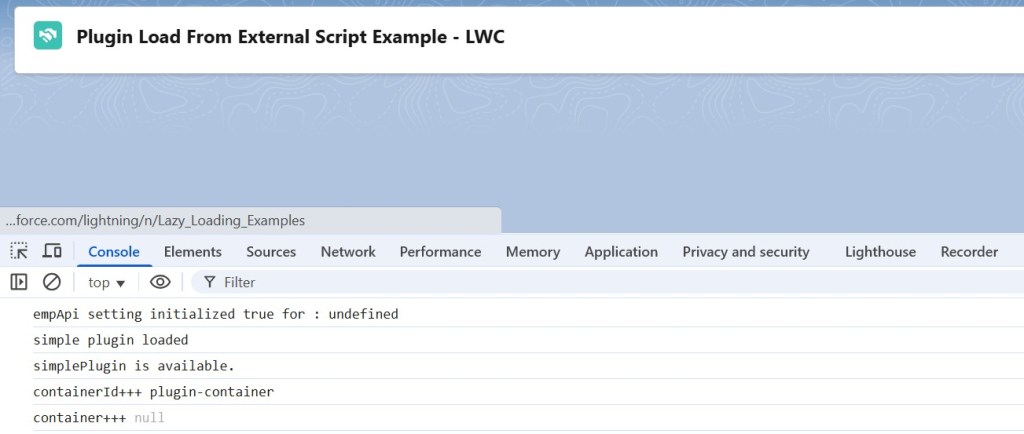
document.getElementById in simplePlugin.js is null in LWCFix – the <div> Need to Be Dynamically Created in LWC
- Scoped DOM: The
simplePluginis designed to look for elements in the global DOM. Therefore, it cannot locate theplugin-containerdiv within the Shadow DOM of the LWC. Dynamically creating the<div>and attaching it to the component’s template ensures it is available for the script to manipulate. - Shadow DOM Restrictions: Scripts that do not account for Shadow DOM encapsulation need access to elements. This access must be explicitly provided through dynamic creation or other techniques.
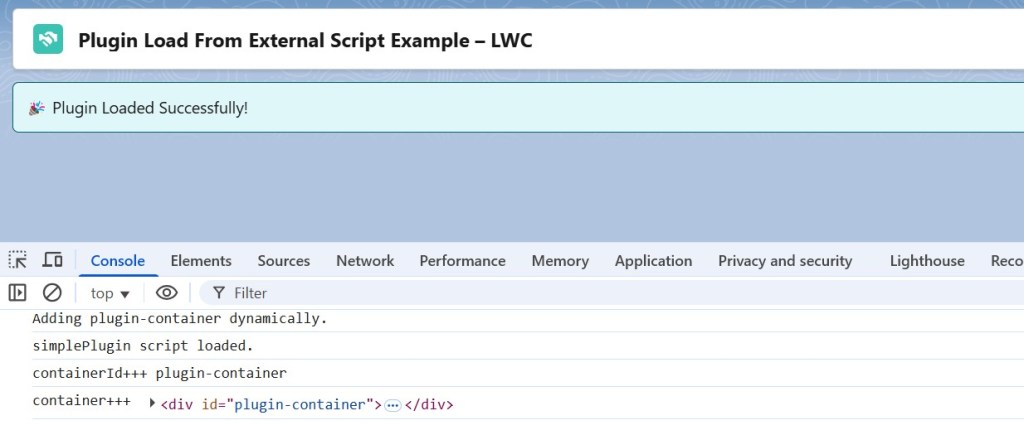
Sample Code –
Below is the high-level functionality of this LWC example:
- External Plugin Loading:
TheloadScriptutility is used to dynamically load thesimplePluginJavaScript file from Salesforce static resources. - Plugin Initialization:
Once the script is loaded, the component checks ifwindow.simplePluginis available and invokes itsloadfunction to initialize the plugin with a specific container ID (plugin-container). - Lifecycle Hook Integration:
TheconnectedCallbacklifecycle hook loads the external plugin script. It initializes the script when the component is inserted into the DOM. - Dynamic Element Creation:
TherenderedCallbacklifecycle hook creates a<div>element with the ID (plugin-container) dynamically. It then appends the element to the LWC component’s Shadow DOM. - Shadow DOM Context:
The LWC operates in the Shadow DOM. Therefore, external scripts must work with dynamically added DOM elements. This ensures seamless integration. - Internal Flags:
Flags (pluginInitializedandscriptTagCreated) ensure that the script is loaded only once. They also ensure the container is created one time to avoid redundant operations.
Key Differences Between VF and LWC DOM Handling
| Feature | Visualforce (VF) | Lightning Web Components (LWC) |
|---|---|---|
| DOM Scope | Global | Shadow DOM (Scoped) |
| Element Access | document.getElementById | this.template.querySelector |
| Script Compatibility | Works with global DOM scripts | Requires scoped or dynamic elements |
| Encapsulation | None | Strong |
| Risk of Conflicts | High | Low |
Some Practical Examples of Adding dynamic elements for using external scripts
Here are practical examples of using third-party scripts in Lightning Web Components (LWC) where dynamic elements are added to the DOM to interact with the scripts effectively:
1. Integrating a Chart Library (e.g., Chart.js)
- Use Case: Render a dynamically updating chart using Chart.js.
- Third-Party Script: Chart.js.
- Dynamic Elements: A
canvaselement is dynamically added as the chart container. - High Level Steps:
- Dynamically create a
canvaselement inside the template. - Use Chart.js to draw a chart on the
canvas.
- Dynamically create a
- Example – LWC Recipes
2. Embedding a Payment Gateway (e.g., Stripe, Paypal)
- Use Case: Render Stripe Elements for secure card input dynamically.
- Third-Party Script: Stripe.js.
- Dynamic Elements: Payment input fields dynamically rendered by Stripe Elements.
- High Level Steps:
- Load Stripe.js in the
connectedCallback. - Use Stripe’s API to initialize and dynamically render input fields.
- Load Stripe.js in the
3. Embedding a Map (e.g., Leaflet.js)
- Use Case: Display an interactive Map on an LWC component..
- Third-Party Script: Leaflet.js.
- Dynamic Elements: A div element is dynamically added as a map container for rendering the map.
- High Level Steps:
- Load the Maps script dynamically in the connectedCallback.
- Dynamically create a div container for the map.
- Initialize the map instance within the dynamically created container in renderedCallback.
- Example – Using Leaflet Map in LWC
Conclusion and Best Practices
The behavior difference stems from Visualforce’s reliance on a global DOM versus LWC’s modern Shadow DOM approach. To ensure compatibility with external scripts in LWC:
- Dynamically create and expose necessary elements when integrating scripts.
- Adapt external scripts to support scoped DOM manipulation or refactor them to accept container elements programmatically.
- Understand the isolation principles of Shadow DOM to leverage the full power of LWC’s encapsulation.
By embracing these practices, you can seamlessly integrate external scripts into LWC while maintaining clean, modern, and robust code.

 Welcome to The Salesforce Dev
Leave a reply to Using Leaflet Map in Lightning Web Components (LWC) – Welcome to The Salesforce Dev Cancel reply