

Introduction
Welcome to our latest blog post Handling Exceptions in Salesforce Screen Flow: Using the Screen Flow Error Handler Sub flow for Enhanced Fault Management !
Today, we will dive into a key flow element used in Salesforce for efficient error handling – the Screen Flow Error Handler Sub flow. This sub flow specifically processes and displays error messages when it encounters certain fault conditions in Salesforce Flow.
In this post, we will walk through the components of the Screen Flow Error Handler Sub flow, how it handles error messages, and how you can implement this in your own flows to improve user experience by displaying meaningful error details.
Overview
The Screen Flow Error Handler Sub flow is an efficient solution for handling and displaying error messages in a Salesforce flow. It is particularly valuable especially when managing specific error codes and additionally providing clear, user-friendly error messages By utilizing this sub flow, you no longer need to handle error management in each flow separately. Simply call this sub flow in your main screen flow, pass the fault message, and it will automatically manage the error handling for you. This eliminates the need to manually handle errors in each individual flow, saving you time and effort.
The sub flow includes a decision node, formulas, and screens to analyze fault messages and extract key error details effectively. It presents extracted error details to the user clearly and concisely, ensuring better understanding and easier resolution of the issue.
For instance, when encountering a FIELD_CUSTOM_VALIDATION_EXCEPTION, the flow removes unnecessary Salesforce error details like “You can look up ExceptionCode values in the SOAP API Developer Guide“ and only displays the relevant portion, such as “Close Date cannot be less than today.” This ensures that users receive clear, actionable error messages without the confusion of unnecessary technical details.
For any other errors, the flow will display the full, relevant message to the user. The flow’s dynamic nature ensures users always receive the most accurate and helpful error information during interactions.
Benefits of Screen Flow Error Handler Sub flow –
Here are some of the advantages of using this flow in Salesforce:
- Reusable and Time-Saving: Reusing the sub flow eliminates manual error handling in each flow, ensuring consistency and efficiency.
- Centralized Error Handling: No need to manage error handling in each flow separately. The subflow handles errors for multiple flows, saving time and reducing complexity.
- User-Friendly Error Messages: It displays clear, concise error messages, removing unnecessary Salesforce technical details. This helps users easily understand and correct issues.
- Simplified Maintenance: A single subflow with centralized error handling lets you make updates in one place, reducing maintenance overhead.
- Enhanced Fault Management: It processes fault messages automatically. Unnecessary details are filtered out, ensuring users only see the relevant error message.
- Customizable for Different Errors: Tailor the subflow to handle specific error codes and scenarios. This enables flexible error management based on organizational needs.
These advantages help improve the efficiency and usability of Salesforce flows while ensuring a smoother user experience.
Subflow: Screen Flow Error Handler

Calling Error Handling Sub Flow in Parent Flow

Passing Parent Flow Fault Message as Input to Sub Flow
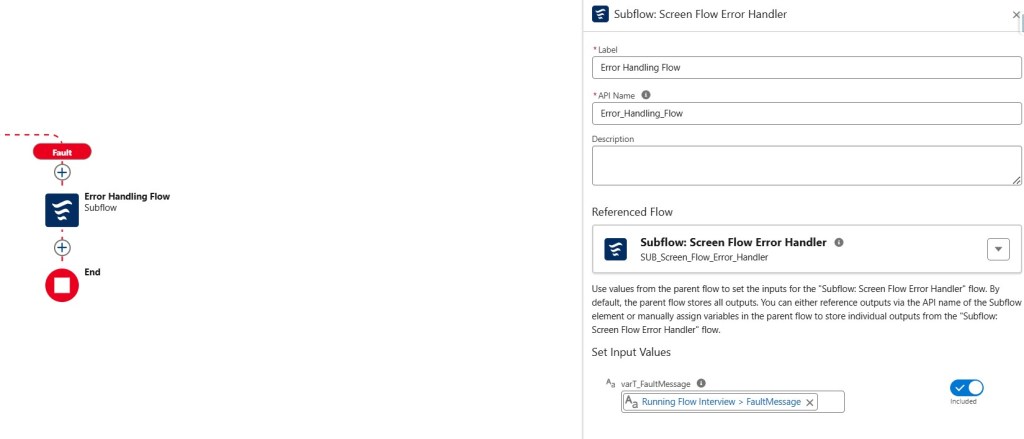
Demo –
Let’s break down the key elements of this error-handling subflow.
Flow Variables:
Text Variables –
- varT_FaultMessage: This variable of type String is used as an input to the flow from parent flow. Parent Flow will pass the fault message to this flow.
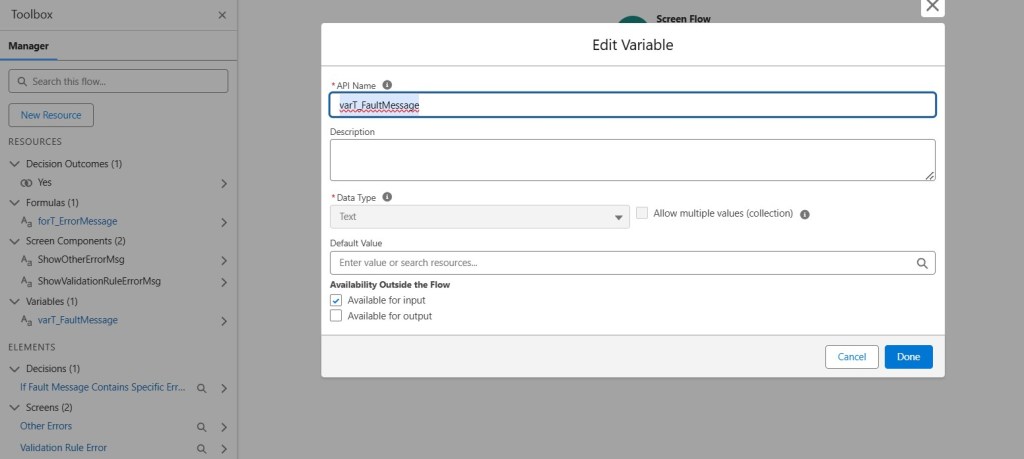
Formula Variables –
- forT_ErrorMessage: A String formula that extracts the portion of the fault message before a specific error code. This helps in isolating the relevant part of the error message.

TRIM(
  SUBSTITUTE(
    MID(
      LEFT(
        {!varT_FaultMessage},
        FIND("You can look up ExceptionCode", {!varT_FaultMessage}) - 1
      ),
      FIND("FIELD_CUSTOM_VALIDATION_EXCEPTION:", {!varT_FaultMessage}) + LEN("FIELD_CUSTOM_VALIDATION_EXCEPTION:") + 1,
      LEN(
        LEFT(
          {!varT_FaultMessage},
          FIND("You can look up ExceptionCode", {!varT_FaultMessage}) - 1
        )
      )
    ),
    "..",
    "."
  )
)
Flow Steps Explanation
Let’s take a closer look at the steps in the subflow and how they work together to handle errors:
Step 1: Fault Message Decision
The flow begins with the decision If_Fault_Message_Contains_Specific_Error_Code. This decision checks whether the fault message contains a specific string, such as “You can look up” or other error code. If the condition is met, it triggers a different screen flow to show a tailored error message. If not, the flow follows the default path.

Step 2: Show Error Message Screen
If the condition in the decision node is true, the flow proceeds to Validation_Rule_Error screen, where the user sees a formatted error message based on the value of forT_ErrorMessage. This sets up this screen as a display text field to present the extracted error information clearly to the user.

Step 3: Handle Default Error Display
If the fault message doesn’t contain the specific error code, then the flow moves to Other Errors screen. In this case, the screen will display the full varT_FaultMessage, thereby ensuring that the user receives the full error message if no specific condition is met. Additionally, this fallback screen ensures that it does not leave users without any error information.

SUB_Screen_Flow_Error_Handler.flow-meta.xml
<?xml version="1.0" encoding="UTF-8"?>
<Flow xmlns="http://soap.sforce.com/2006/04/metadata">
<apiVersion>62.0</apiVersion>
<decisions>
<name>If_Fault_Message_Contains_Specific_Error_Code</name>
<label>If Fault Message Contains Specific Error Code</label>
<locationX>182</locationX>
<locationY>134</locationY>
<defaultConnector>
<targetReference>Other_Errors</targetReference>
</defaultConnector>
<defaultConnectorLabel>Default Outcome</defaultConnectorLabel>
<rules>
<name>Yes</name>
<conditionLogic>and</conditionLogic>
<conditions>
<leftValueReference>varT_FaultMessage</leftValueReference>
<operator>Contains</operator>
<rightValue>
<stringValue>You can look up</stringValue>
</rightValue>
</conditions>
<connector>
<targetReference>Validation_Rule_Error</targetReference>
</connector>
<label>Yes</label>
</rules>
</decisions>
<description>This flow is a sub flow, which contains common logic for doing error handling and showing error message on screen.</description>
<environments>Default</environments>
<formulas>
<name>forT_ErrorMessage</name>
<dataType>String</dataType>
<expression>TRIM(
SUBSTITUTE(
MID(
LEFT(
{!varT_FaultMessage},
FIND("You can look up ExceptionCode", {!varT_FaultMessage}) - 1
),
FIND("FIELD_CUSTOM_VALIDATION_EXCEPTION:", {!varT_FaultMessage}) + LEN("FIELD_CUSTOM_VALIDATION_EXCEPTION:") + 1,
LEN(
LEFT(
{!varT_FaultMessage},
FIND("You can look up ExceptionCode", {!varT_FaultMessage}) - 1
)
)
),
"..",
"."
)
)</expression>
</formulas>
<interviewLabel>Subflow: Screen Flow Error Handler {!$Flow.CurrentDateTime}</interviewLabel>
<label>Subflow: Screen Flow Error Handler</label>
<processMetadataValues>
<name>BuilderType</name>
<value>
<stringValue>LightningFlowBuilder</stringValue>
</value>
</processMetadataValues>
<processMetadataValues>
<name>CanvasMode</name>
<value>
<stringValue>AUTO_LAYOUT_CANVAS</stringValue>
</value>
</processMetadataValues>
<processMetadataValues>
<name>OriginBuilderType</name>
<value>
<stringValue>LightningFlowBuilder</stringValue>
</value>
</processMetadataValues>
<processType>Flow</processType>
<screens>
<name>Other_Errors</name>
<label>Other Errors</label>
<locationX>314</locationX>
<locationY>242</locationY>
<allowBack>true</allowBack>
<allowFinish>true</allowFinish>
<allowPause>true</allowPause>
<fields>
<name>ShowOtherErrorMsg</name>
<fieldText><p><strong style="color: rgb(255, 0, 0);">{!varT_FaultMessage}</strong></p></fieldText>
<fieldType>DisplayText</fieldType>
</fields>
<showFooter>true</showFooter>
<showHeader>false</showHeader>
</screens>
<screens>
<name>Validation_Rule_Error</name>
<label>Validation Rule Error</label>
<locationX>50</locationX>
<locationY>242</locationY>
<allowBack>true</allowBack>
<allowFinish>true</allowFinish>
<allowPause>true</allowPause>
<fields>
<name>ShowValidationRuleErrorMsg</name>
<fieldText><p><strong style="color: rgb(255, 0, 0);">{!forT_ErrorMessage}</strong></p></fieldText>
<fieldType>DisplayText</fieldType>
</fields>
<showFooter>true</showFooter>
<showHeader>false</showHeader>
</screens>
<start>
<locationX>56</locationX>
<locationY>0</locationY>
<connector>
<targetReference>If_Fault_Message_Contains_Specific_Error_Code</targetReference>
</connector>
</start>
<status>Draft</status>
<variables>
<name>varT_FaultMessage</name>
<dataType>String</dataType>
<isCollection>false</isCollection>
<isInput>true</isInput>
<isOutput>false</isOutput>
</variables>
</Flow>
 Welcome to The Salesforce Dev
Leave a comment